Editing in SharePoint's SPGridView
By Kit
The goal of this post is to provide an easy to understand example of how to enable editing in an SPGridView. In this case, my datasource of choice is a SharePoint list.
The way that I chose to implement editing in an SPGridView involved two classes:
- SimpleLogic – handles query and update operations
- SimpleSPGrid – handles all of the setup for the ObjectDataSource and the SPGridView
The main advantage for splitting the two classes is to separate all of the business logic into one class. Ideally, you should be able to completely change how the SimpleLogic class retrieves/updates data without changing the SimpleSPGrid code.
The Setup
In this example, our logic class is retrieving and updating data in a SharePoint list. My SharePoint list had three main columns: Title (text), Region (choice), and Total Sales (currency).
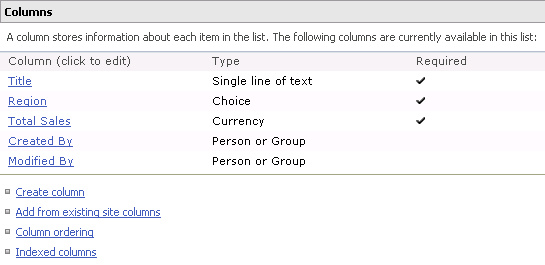
Now that I had some data to read from and write to, I was ready to create my logic class.
The SimpleLogic Class
The goal for the logic class was to expose all of the operations the gridview would need in order to read or update data:
- public DataTable Select()
How do I get the data?
- public List
GetColumns()
How do I display the data?
- public void Update(Dictionary<string, string> data)
How do I update the data?
{
const string LIST_NAME = "Example Sales Data";
readonly string[] LIST_COLUMNS = null;
readonly string VIEW_FIELDS = string.Empty;
readonly string[] DATA_KEY_NAMES = null;
private SPWeb _currentWeb;
public SimpleLogic(SPWeb currentWeb)
{
_currentWeb = currentWeb;
DATA_KEY_NAMES = new string[1];
DATA_KEY_NAMES[] = "ID";
LIST_COLUMNS = new string[4];
LIST_COLUMNS[] = "ID";
LIST_COLUMNS[1] = "Title";
LIST_COLUMNS[2] = "Region";
LIST_COLUMNS[3] = "Total_x0020_Sales";
VIEW_FIELDS = GetViewFields(LIST_COLUMNS);
}
public string[] GetDataKeyNames()
{
return DATA_KEY_NAMES;
}
public List<BoundField> GetColumns()
{
List<BoundField> fields = new List<BoundField>();
fields.Add(GetBoundField("ID"));
// we don't want the ID field to be editable so we make it readonly
// readonly will mean a textbox to edit it will not be shown
fields[].ReadOnly = true;
fields.Add(GetBoundField("Title"));
fields.Add(GetBoundField("Region"));
fields.Add(GetBoundField("Total_x0020_Sales"));
return fields;
}
private BoundField GetBoundField(string name)
{
// do not use SPBoundField (will not work with editing)
BoundField bf = new BoundField();
bf.HeaderText = name;
bf.DataField = name;
return bf;
}
public DataTable Select()
{
SPQuery q = new SPQuery();
q.ViewFields = VIEW_FIELDS;
q.Query = "
SPList list = _currentWeb.Lists[LIST_NAME];
SPListItemCollection items = list.GetItems(q);
return items.GetDataTable();
}
private string GetViewFields(string[] columns)
{
StringBuilder sb = new StringBuilder();
foreach (string field in columns)
{
sb.AppendFormat("
}
return sb.ToString();
}
public void Update(Dictionary<string, string> data)
{
SPList list = _currentWeb.Lists[LIST_NAME];
int id = Int32.Parse(data["ID"]);
SPListItem item = list.GetItemById(id);
item["Title"] = data["Title"];
item["Region"] = data["Region"];
item["Total_x0020_Sales"] = data["Total_x0020_Sales"];
item.Update();
}
}
DISCLAIMER: When actually implementing the class above, you will probably need to add some sort of error handling. In order to provide a simpler example, the error handling has been omitted.
Once our logic class is functioning correctly, we can work on hooking it up to an SPGridView.
The SimpleSPGrid Class
The SimpleSPGrid class contains most of the guts that will probably be different to you. The first thing to notice is that it takes our SimpleLogic class as a parameter. This allows us to instantiate our logic class beforehand with any parameters that are needed, and then pass it into SimpleSPGrid to use.
{
private SimpleLogic _logic;
private ObjectDataSource _gridDS;
private SPGridView _grid;
public SimpleSPGrid(SimpleLogic logic)
{
_logic = logic;
}
protected sealed override void CreateChildControls()
{
const string GRIDID = "grid";
const string DATASOURCEID = "gridDS";
_gridDS = new ObjectDataSource();
_gridDS.ID = DATASOURCEID;
_gridDS.TypeName = typeof(SimpleLogic).AssemblyQualifiedName;
_gridDS.ObjectCreating += new ObjectDataSourceObjectEventHandler(gridDS_ObjectCreating);
_gridDS.SelectMethod = "Select";
// to handle updates from the grid
_gridDS.UpdateMethod = "Update";
_gridDS.Updating += new ObjectDataSourceMethodEventHandler(gridDS_Updating);
this.Controls.Add(_gridDS);
// create our grid
_grid = new SPGridView();
_grid.ID = GRIDID;
_grid.DataSourceID = _gridDS.ID; // link the grid to the ObjectDataSource
_grid.AutoGenerateColumns = false; // must be false
// generally the primary key field(s)
// these will be passed as an input parameter
_grid.DataKeyNames = _logic.GetDataKeyNames();
// add the column that will allow editing
CommandField command = new CommandField();
command.ShowEditButton = true;
_grid.Columns.Add(command);
// add all of the columns in the datatable to the grid
// any column that is not readonly will be passed as an input parameter
foreach (BoundField column in _logic.GetColumns())
{
_grid.Columns.Add(column);
}
this.Controls.Add(_grid);
}
///
/// Consolidates all of the InputParameters (values from the grid)
/// into one dictionary of values to send to the update method
///
void gridDS_Updating(object sender, ObjectDataSourceMethodEventArgs e)
{
Dictionary<string, string> data = new Dictionary<string, string>();
foreach (DictionaryEntry entry in e.InputParameters)
{
string value = entry.Value == null ? null : entry.Value.ToString();
data.Add(entry.Key.ToString(), value);
}
e.InputParameters.Clear();
e.InputParameters.Add("data", data);
}
///
/// When the ObjectDataSource is created, hook it up to the Logic class
/// (so that it uses the Logic class to make the Select, Update... calls)
///
private void gridDS_ObjectCreating(object sender, ObjectDataSourceEventArgs e)
{
e.ObjectInstance = _logic;
}
}
Wrap up
Now that all the hard work is done, we are ready to use the classes inside our web part. Inside the CreateChildControls of your webpart you would have the following code ( even though we have an SPWeb here, it should NOT be disposed):
{
SimpleLogic logic = new SimpleLogic(SPControl.GetContextWeb(Context));
SimpleSPGrid grid = new SimpleSPGrid(logic);
this.Controls.Add(grid);
}
This will produce the following grid!

And clicking edit…